
1. Get your key
You'll need a Lunatechs account with a handle. If you don't have one, sign up first.
Get added to the event
Ask one of the chapter's organizers to add you as a guest organizer for your event. You'll get an email saying you've been added and what you can do.
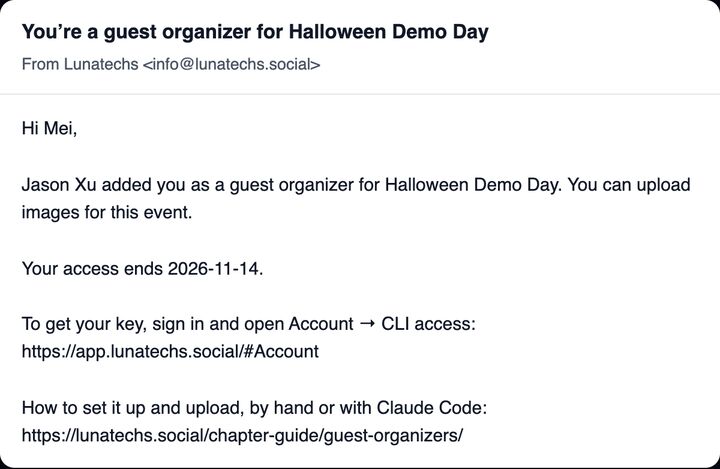
Create your key
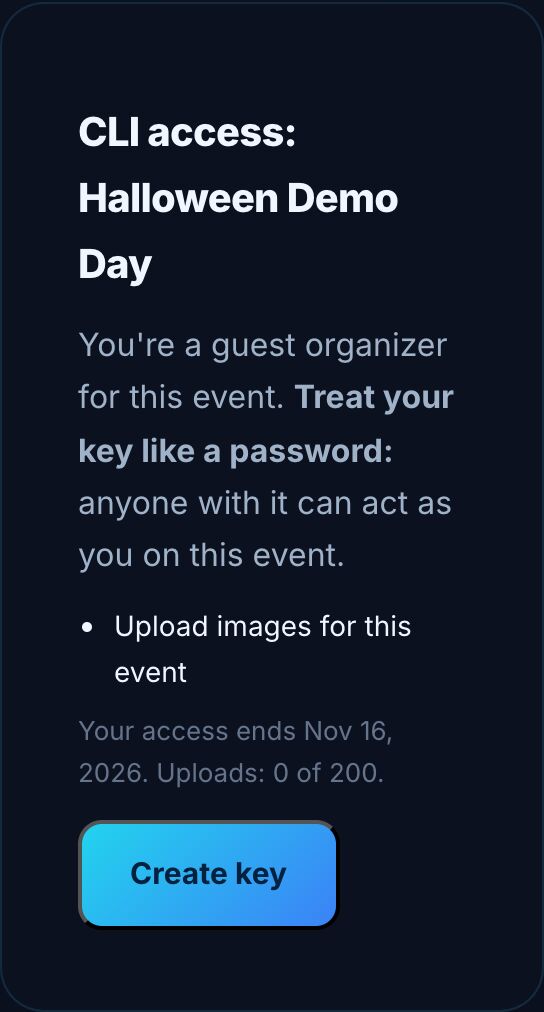
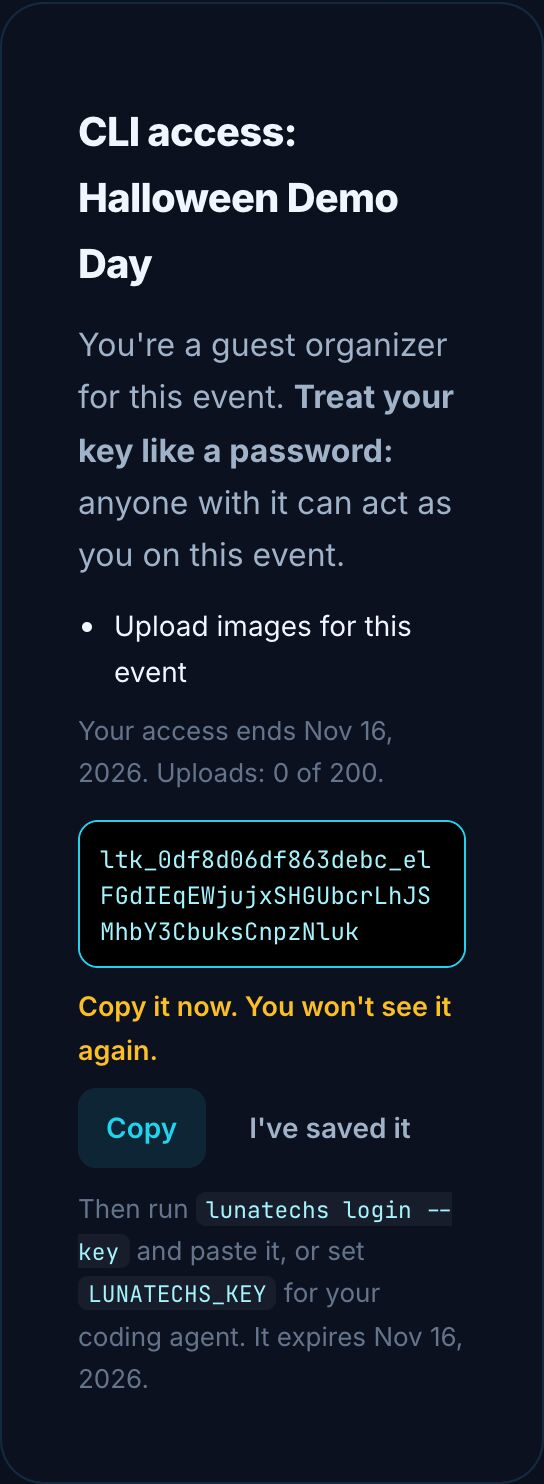
Sign in at app.lunatechs.social, open Account, and scroll to CLI access for your event. Tap Create key, then Copy.
- It's shown once. Copy it before you tap I've saved it. Lost it? Tap Replace key: the old one stops working and you get a new one.
- Treat it like a password. Anyone with it can upload to your event as you.
- It expires 30 days after you create it, or when your access to the event ends, whichever comes first. Then you just create a new one.
2. Set up the CLI
The Lunatechs CLI is one small file. You need Node.js 18 or newer (check with node -v). These commands are for macOS and Linux; on Windows, use WSL.
Download the CLI
mkdir -p ~/.lunatechs
curl -fsSL https://app.lunatechs.social/cli/lunatechs.mjs -o ~/.lunatechs/lunatechs.mjs
alias lt="node ~/.lunatechs/lunatechs.mjs"
The alias line saves typing for this terminal window. Add it to your ~/.zshrc to keep it.
Give it your key
export LUNATECHS_KEY="ltk_paste_your_key_here"
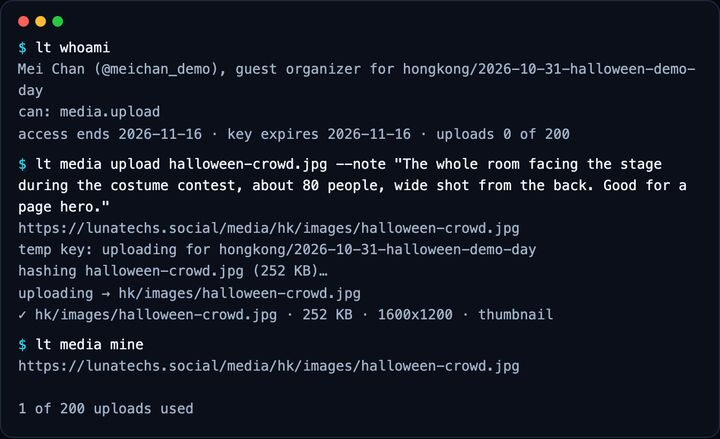
lt whoami
whoami should show your event, what you can do, and when your key and access end.
To save the key so you don't need the export each time, run lt login --key and paste it instead. Skip that if you're also a chapter organizer on this computer: it replaces your normal Lunatechs login in the CLI.
3. Upload by hand
Upload a photo
lt media upload crowd.jpg --note "The whole room facing the stage during the second talk, about 80 people, wide shot from the back. Good for a page hero."
It prints the photo's URL when it's done. The chapter and event come from your key, so you don't pass them.
- JPEG, PNG or WebP, up to 3.5 MB. No video. On a Mac,
sips -Z 2400 photo.jpgshrinks a photo that's too big. - A real description, at least 60 characters and 10 words. Say what it shows, how many people, the setting, and anything that limits where it can be used. Other organizers find photos by these words.
- It's public straight away, and permanent. Only upload photos that are fine on a public page. Only a Lunatechs admin can delete one.
- Every photo is checked for explicit or inappropriate content, and anything flagged is refused and deleted.
- Up to 200 photos per event by default. Ask the organizers if you need more.
See what you've uploaded
lt media mine
It lists your uploads for this event, with their URLs, and how many of your allowance you've used.
4. Upload with Claude Code
If you use Claude Code, it can describe and upload a whole folder of photos for you.
Start Claude Code with your key
Put your key in the terminal first, then start Claude Code in the folder with your photos:
cd ~/Desktop/event-photos
export LUNATECHS_KEY="ltk_paste_your_key_here"
claude
Ask it to upload
“Upload the photos in this folder to the Lunatechs media library with node ~/.lunatechs/lunatechs.mjs media upload. Look at each one and write a real description for --note: what it shows, roughly how many people, the setting, and what it would suit. Skip any blurry or unflattering ones. Resize anything over 3.5 MB first, and show me the URLs at the end.”
Claude Code looks at each photo, writes its description, and runs the upload. Check its picks before it starts if you want a say in which photos go up, since they're public and permanent.
If something goes wrong
That key isn’t valid any more.It expired, was replaced or was revoked. Create a new one in Account → CLI access.
A chapter organizer has stopped keys for your access.An organizer revoked your key. Ask them to allow a new one.
You no longer have access to this event.Your access ended or you were removed. Ask the chapter's organizers.
You don’t have the media.upload permission for this event.Ask the organizers to tick Upload images for this event for you.
Over 3.5 MB. Resize it and try again.Shrink it (on a Mac:
sips -Z 2400 photo.jpg) and upload again.Describe it in at least one real sentence…The description is too short. Write a full sentence or two.
That exact file is already in the media library.Someone already uploaded this photo. It prints the existing URL, which you can use.
You’ve reached your upload limit for this event.Ask the organizers to raise your cap.
A temp key can’t do that.Temp keys only upload. Browsing and searching the library are for chapter organizers.
Still stuck? Email info@lunatechs.social with the exact message.
For chapter organizers: add a guest organizer
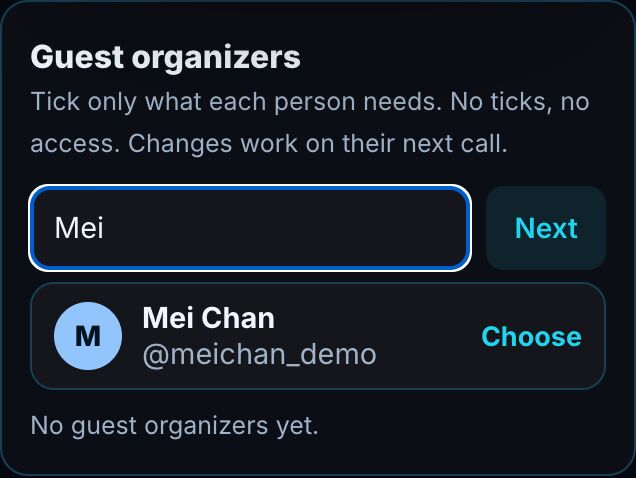
In the app, open the Events tab, find the event, and tap Guest organizers. Type their name or @handle and tap Choose. Tick what they can do (for photos, Upload images for this event), then tap Add and send invite. Their email lists what you ticked.
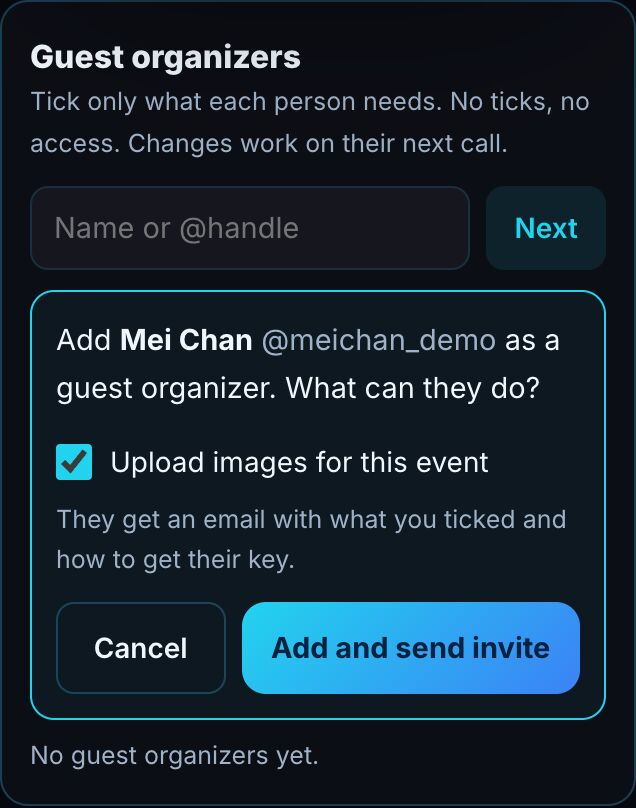
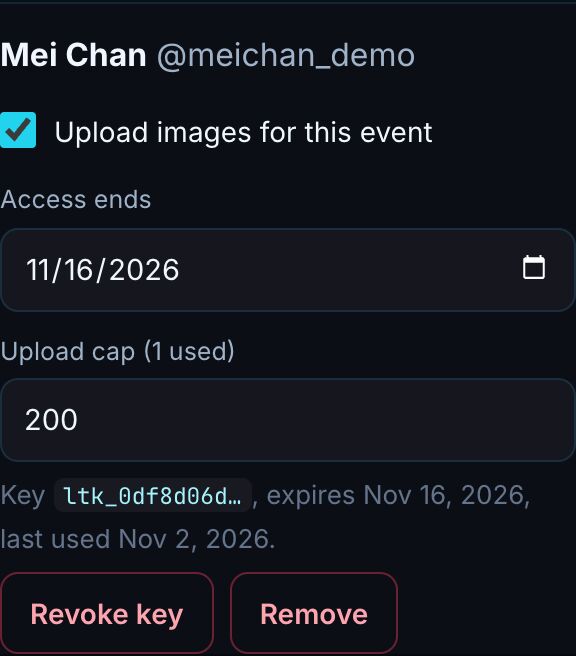
- Add only turns on once something is ticked, so the invite always says what they can do. Changing ticks later saves as you tap and works on their next upload.
- Access ends 14 days after the event by default. Change the date in the panel.
- To stop them: Revoke key stops their key and new ones until you tap Allow a new key. Remove ends their access completely.
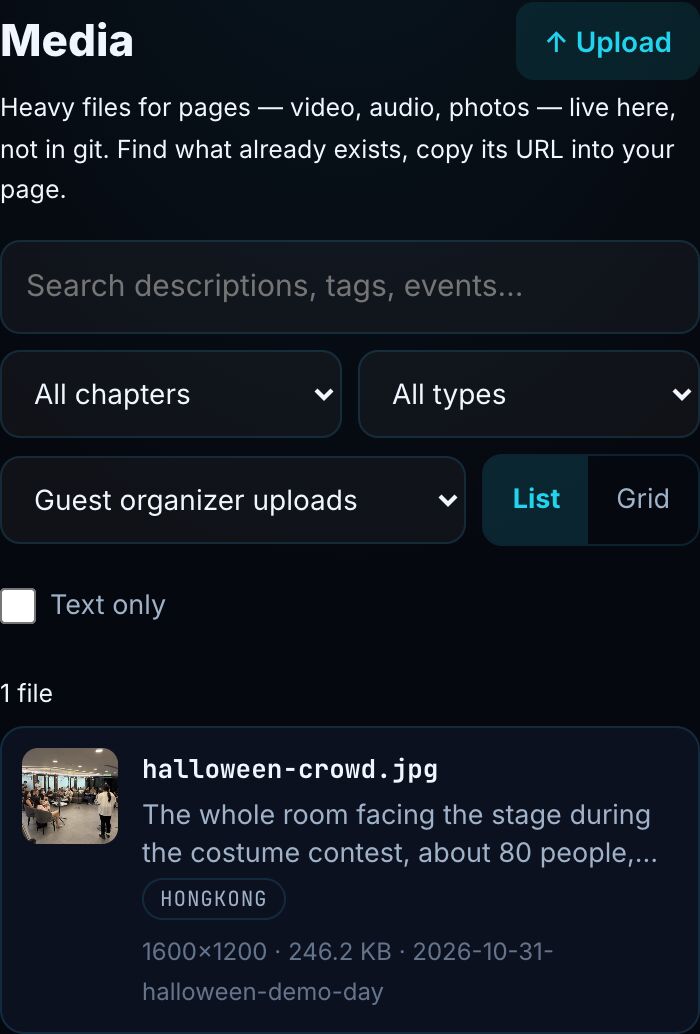
- To see their uploads: in the Media tab, set Who uploaded to Guest organizer uploads.
Screenshots use made-up sample people. Tap one to see it full size.