
Switch it on for your event
The list shows up on the event's own page, the events/<your-event>/ page you already made to promote it (Make an event page). Turn it on for that event:
“Turn on the live demo list for the Halloween Demo Day event.”
Your assistant adds "live": {"demos": true} to the event in events.json. Publish, and the list appears on that event's page, just above the footer. No new page and no widget code to copy.
Move it to the right spot on your event page
Above the footer works, but you can place the list anywhere on the event page. We suggest this layout. Hong Kong's Halloween Demo Day page ends the same way, with the explainer cards and then the list:
- Hero: title, date, venue, plus two buttons: RSVP on Luma and Submit a demo ↓ (links to
#demos) - The pitch: what the night is, who should come, the agenda, the venue
- How the demo list works: three short cards: 1 · Submit your demo, 2 · Send vibes, 3 · Talk about it
- The demo list, in a section with
id="demos" - Footer
To place it, put this one line where you want the list, inside its own section. That line is a placeholder: the build swaps it for the live list.
<section class="section" id="demos">
  <!--#include virtual="/shared/event-live.html" -->
</section>
“Put the demo list near the bottom of the event page in a section with id demos. Add a ‘How the demo list works’ section with three cards above it, and a ‘Submit a demo’ button in the hero that jumps down to it.”
- Keep the Luma button. The demo list isn't registration. People still RSVP on Luma, and the event needs its
lumaUrl. - Share the deep link.
…/events/<your-event>/#demosjumps straight to the list. Use it in the Luma description, the group chat, and the QR code on the night.
Show it on another page too (optional)
A page in the event's own folder (say a demo.html next to index.html, a page just for the demos or a screen for the night): put the same one-line placeholder from step 2 where you want the list:
<section class="section" id="demos">
  <!--#include virtual="/shared/event-live.html" -->
</section>
The build fills in the right event for you. Only pages with this line get the list; a recap or slides page in the same folder stays as it is. Unlike index.html, other pages never get the list added automatically.
“Make a demo.html page for the Halloween Demo Day with the live demo list on it.”
Anywhere else (your chapter homepage, a recap in another folder): paste these two lines, using your chapter's slug (from chapter.json) and the event's folder name:
<div data-demo-day="hongkong/2026-10-31-halloween-demo-day"
     data-title="Halloween Demo Day"></div>
<script src="https://lunatechs.social/assets/demo-day.js" defer></script>
“Embed the live demo list for the Halloween Demo Day on my homepage, under the events section.”
Either way it's the same list, not a copy. Vibes, comments and host controls work everywhere, and it updates live. Inside the event folder, prefer the placeholder: it always points at the right event, and new live features appear there without editing the page.
Set up the demo list (once)
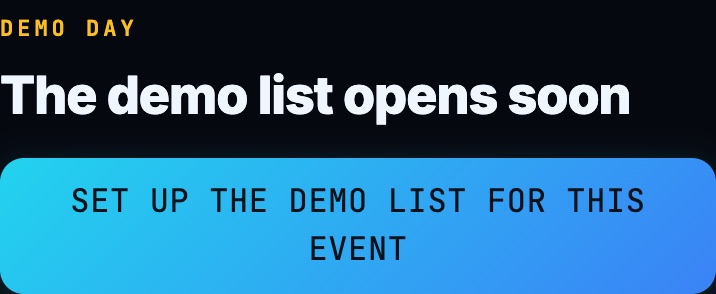
After it's published, open the event page on your phone, signed in to your Lunatechs account as a chapter organizer, and tap Set up the demo list for this event. You only do this once per event. Until you do, visitors see “The demo list opens soon”.
Open your host tools
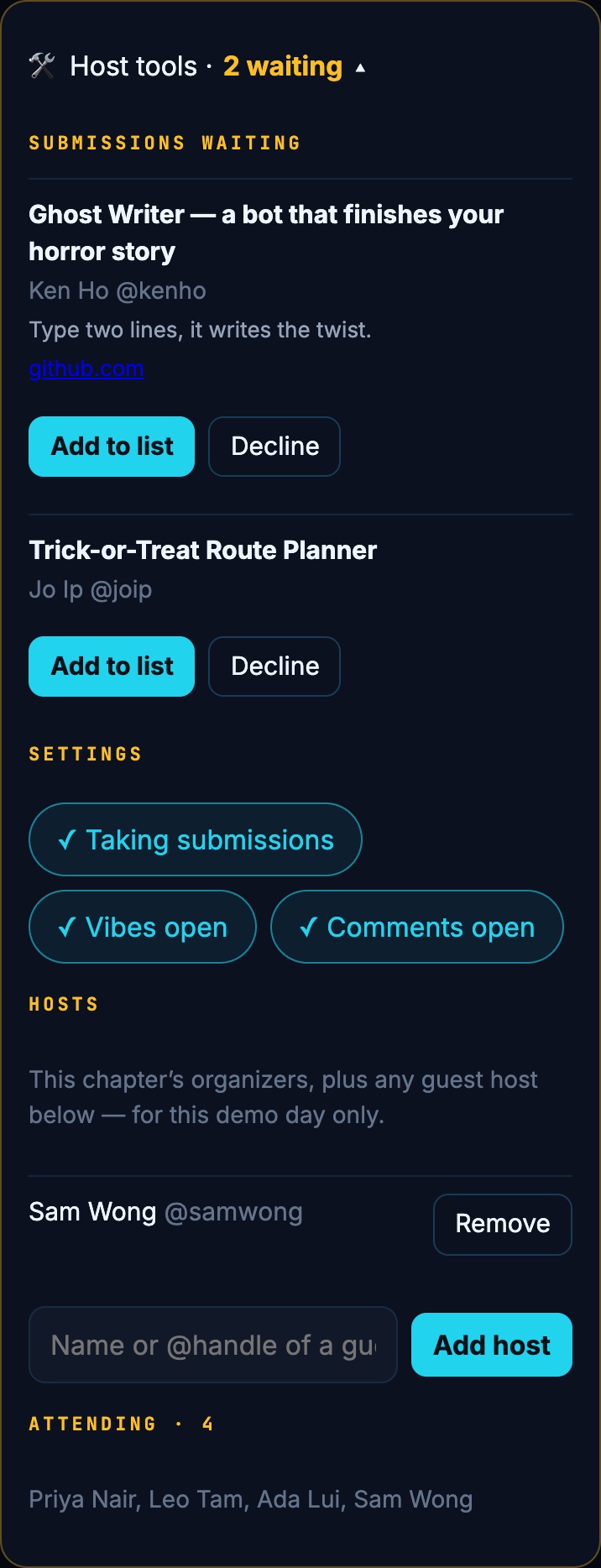
Signed in as a host, you get a 🛠 Host tools panel at the top of the list, with a count of submissions waiting for you. Tap it to open:
- Submissions waiting: demos members sent in. Tap Add to list or Decline.
- Settings: the three switches (step 7).
- Hosts: add a guest host by name or @handle. They get the same controls as you for this one demo day. They need a finished Lunatechs account, and only chapter organizers can add or remove hosts.
- Attending: who has tapped “I'm attending”.
Fill the list and set the order
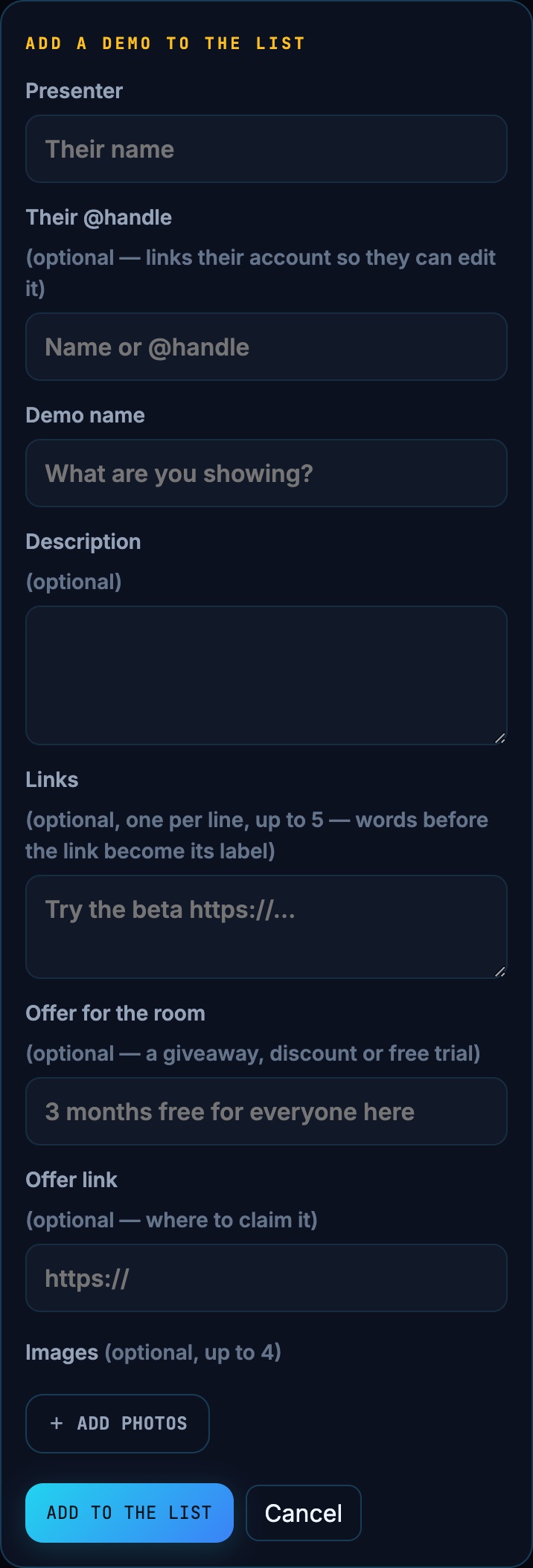
Approve submissions from the host tools, or add a demo yourself with + Add a demo. Put the presenter's @handle in Their @handle so they can edit their own demo later.
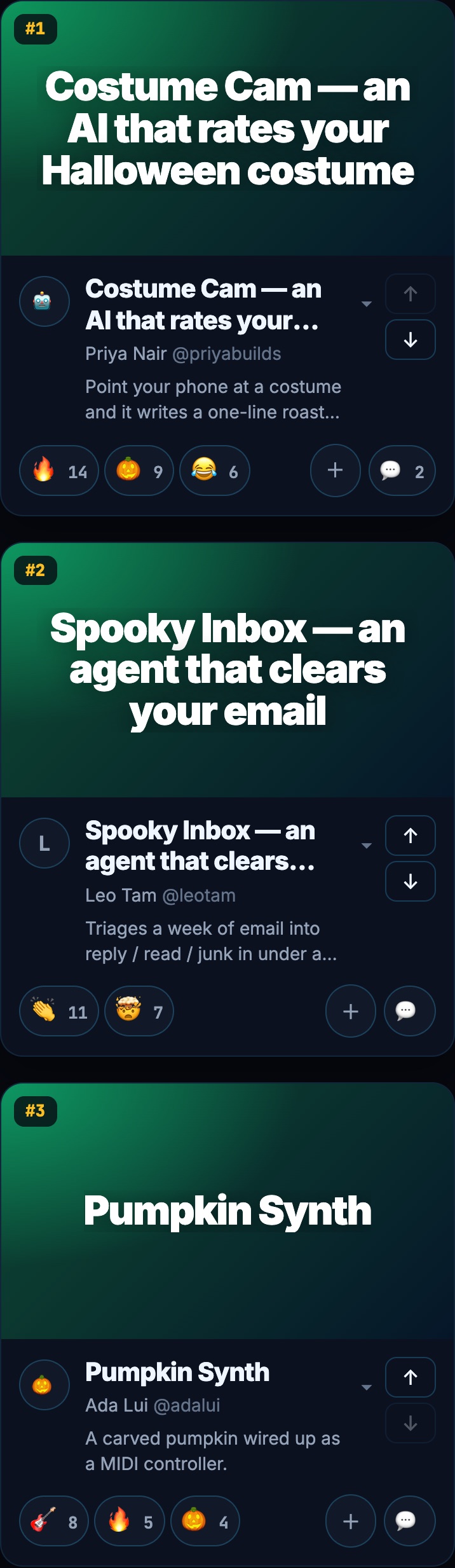
New demos go to the end of the list. Use the ↑ / ↓ beside each demo to set the running order; you don't need to open the card.
Use the three switches
- Taking submissions: turn it off once the lineup is full. You can still add demos yourself.
- Vibes open: the emoji reactions. Leave it on for the night, and turn it off afterwards to freeze the totals.
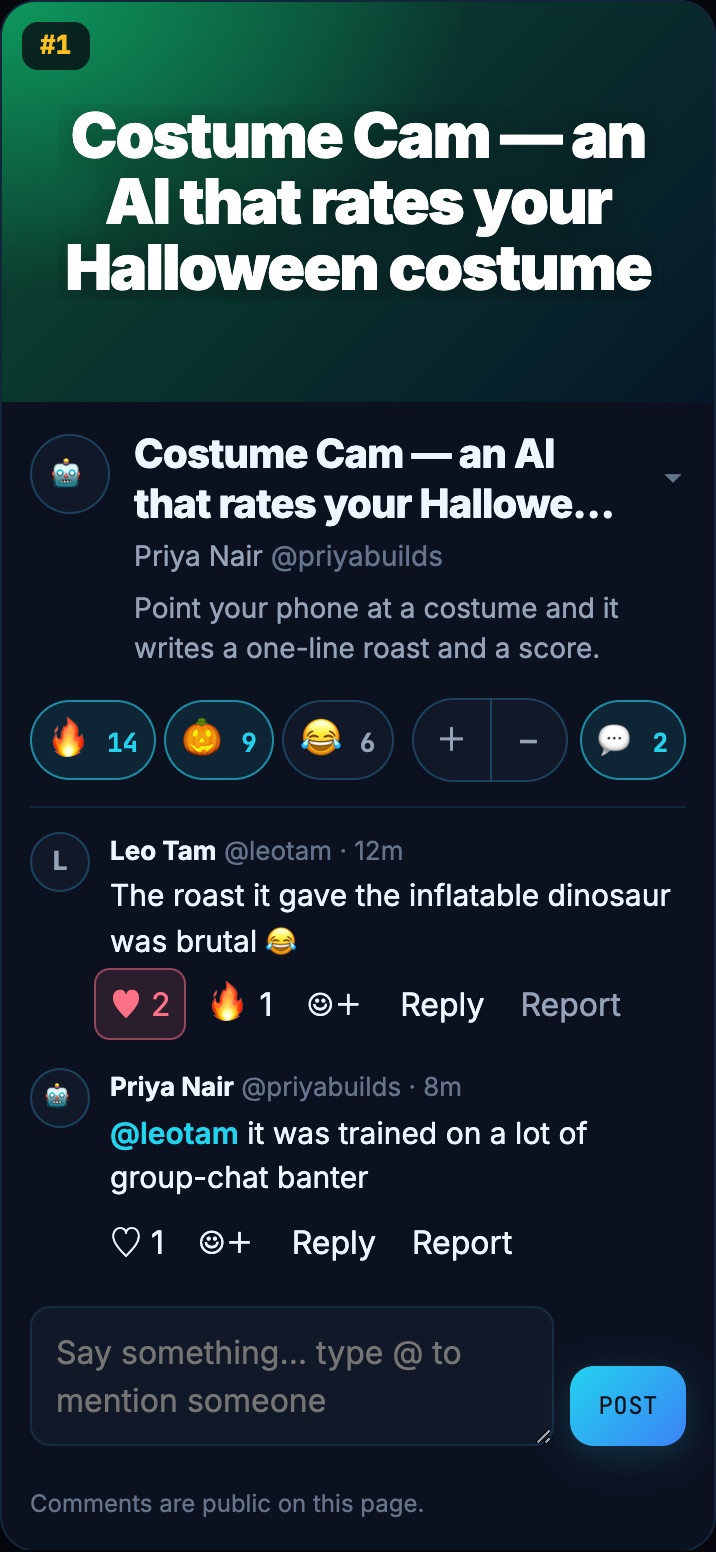
- Comments open: turn it off to stop new comments. Existing comments stay up, and hosts can still reply.
On the night
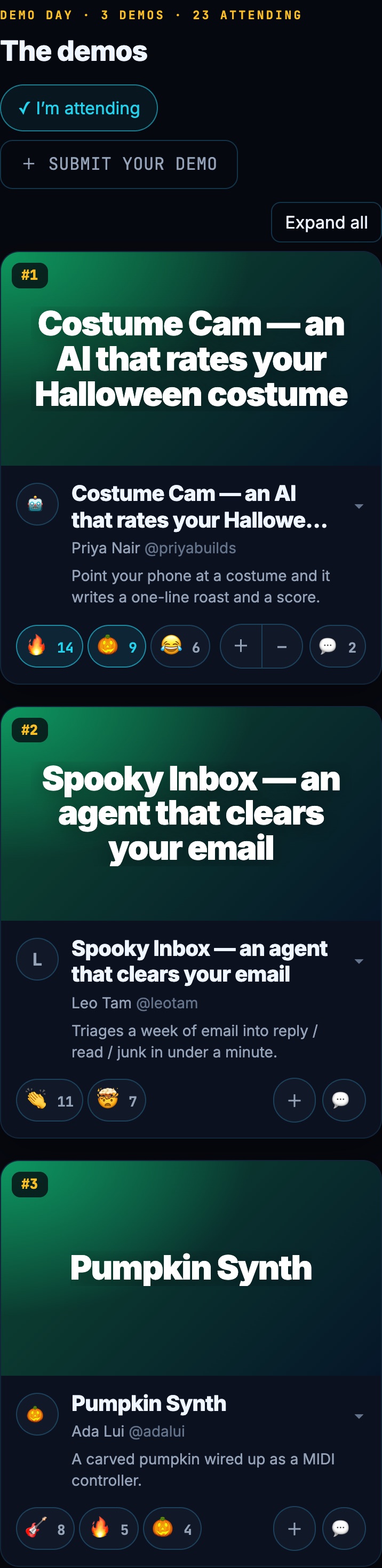
Put the #demos link (or a QR code to it) on the screen. People sign in and tap I’m attending. Then they can send up to 5 vibes per demo and comment. The page refreshes itself every 15 seconds, so the room sees vibes arrive live.
As a host you can delete any comment on your demo day. Comments people report come to the hosts.
events/<this-part>/), which is normally its slug. Rename it and the page shows a new, empty list. The old demos are still saved under the old name, but the page can't show them any more. If you do have to rename, tap Set up the demo list again and re-add the demos.Media: demos take images only. Video goes in as a link (YouTube etc).
Screenshots use made-up sample demos.